









You may get frustrated when trying to play your MOV videos in the media player but it keep popping up the error message telling you to download the right codec. The problem with MOV is that it can only be played on a Quicktime player. Besides, it also can’t be played on a mobile device. You should definitely convert your video into a MP4 video if you are thinking about what is the best format you should convert your video into.
MP4 videos can be played on mobile devices or upload on the internet for sharing with friends. They are much smaller than MOV videos so it can help you to save some hard disk space. Even though MP4 video is not the best quality, most people won’t be able to notice the slight quality loss in the video. You simply need a video converter software like Movavi Video Converter to convert .MOV to .MP4 format.
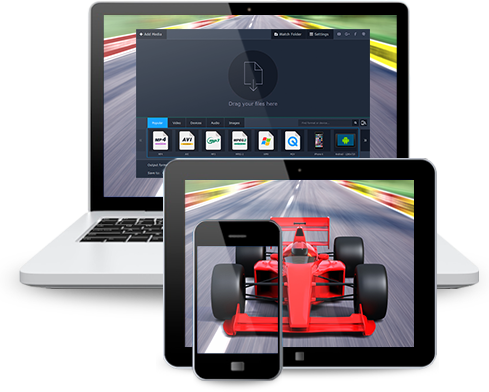
Movavi Video Converter is suitable for converting a single file or a large amount of video files in batch into the format of your choice. The software is suitable for beginner because it features a drag and drop interface. You just drag the videos from whatever folders or the desktop onto the big empty area to import them into the video converter software. Another way to import the video into the software is to click on the Add Media button on the top left corner and select Add Videos.
You will be able to see a thumbnail of the videos that you have imported. Clicking on the play button allows you to preview the video so that you know whether you have imported the right video. The quality level and the size after the conversion are displayed upfront so that you know what you can expect from the video conversion.
The next step is to select MP4 under the video tab. The MP4 format can also be found under the Popular tab. You just have to click MP4 once and it will automatically configure all the videos you imported to convert into MP4 format. You can set the destination path by clicking on the folder button and selecting the folder where you want the converted video files to be saved. The last step is to click the Convert button and wait for a few minutes for your MOV videos to be converted MP4 format one by one.
Movavi Video Converter includes a free video editor for you to use in editing all kinds of videos. You may find the video editor useful in making some slight editing on your video prior to converting it into the format that you want. You can go to the video editor by clicking on the Edit button on the same row of the video you have imported.Movavi Video Converter makes it easy for you to find the video format that you want by displaying the video format types in big thumbnails. You can browse the video format types like browsing a gallery by scrolling to the left and right.


